Wholesale Price Display
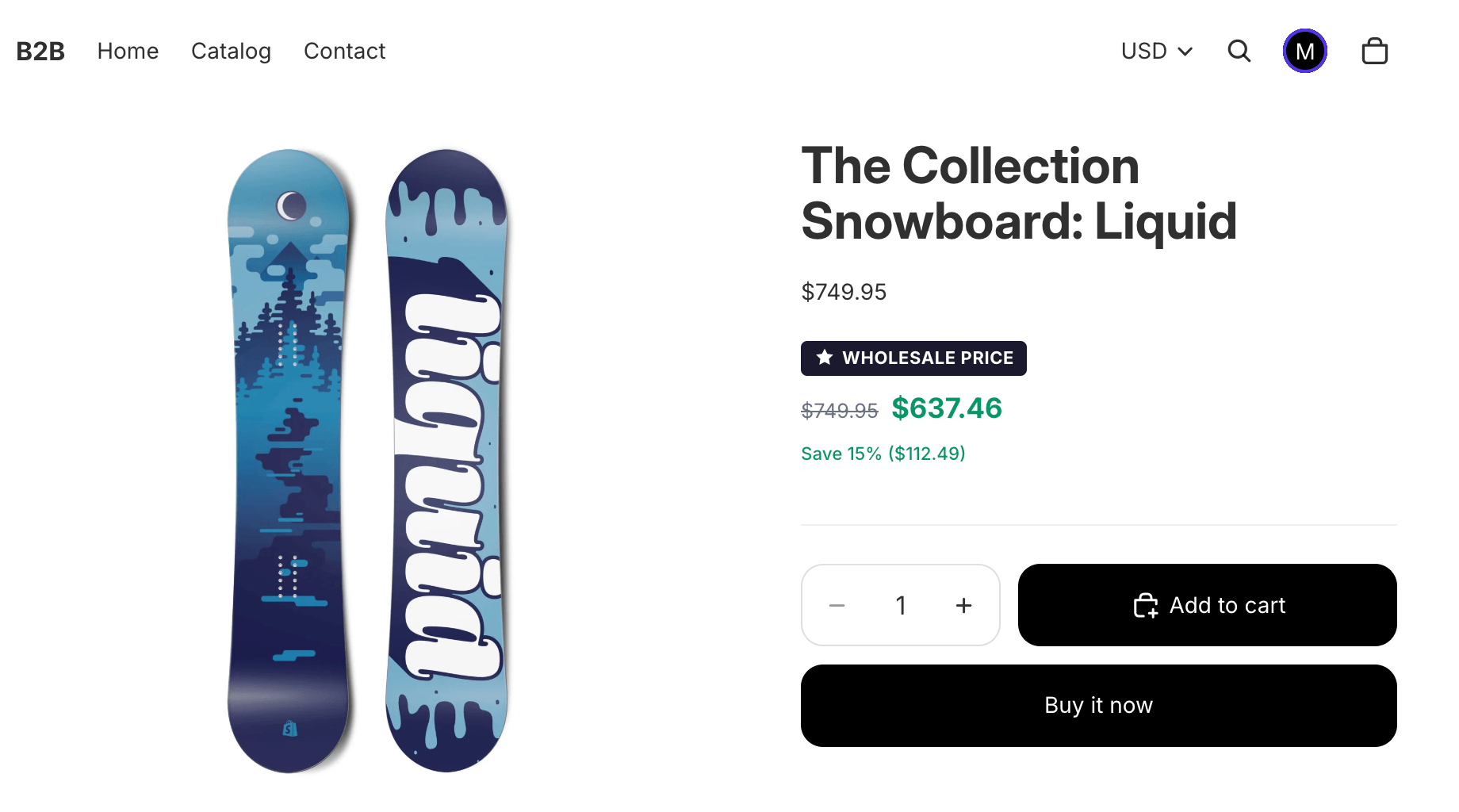
The Wholesale Price Display block shows logged-in wholesale customers their group price directly on the product page, right next to (or replacing) the standard retail price. Guests and non-wholesale customers either see nothing or a Log in to see wholesale pricing prompt — your choice.
This block is purely a display layer. The discount that actually gets applied at checkout comes from your price rules; the block just makes sure the buyer sees the correct number before they click Add to cart.
Prerequisites
Section titled “Prerequisites”Before adding the block, make sure:
- The Wholesale Storefront app embed is active in your live theme. Full walkthrough in Wholesale Storefront App Embed — the embed is the master switch every storefront feature depends on.
- You have at least one wholesale group and one price rule targeting that group. Without a price rule, the block has nothing to display.
Add the block to your product template
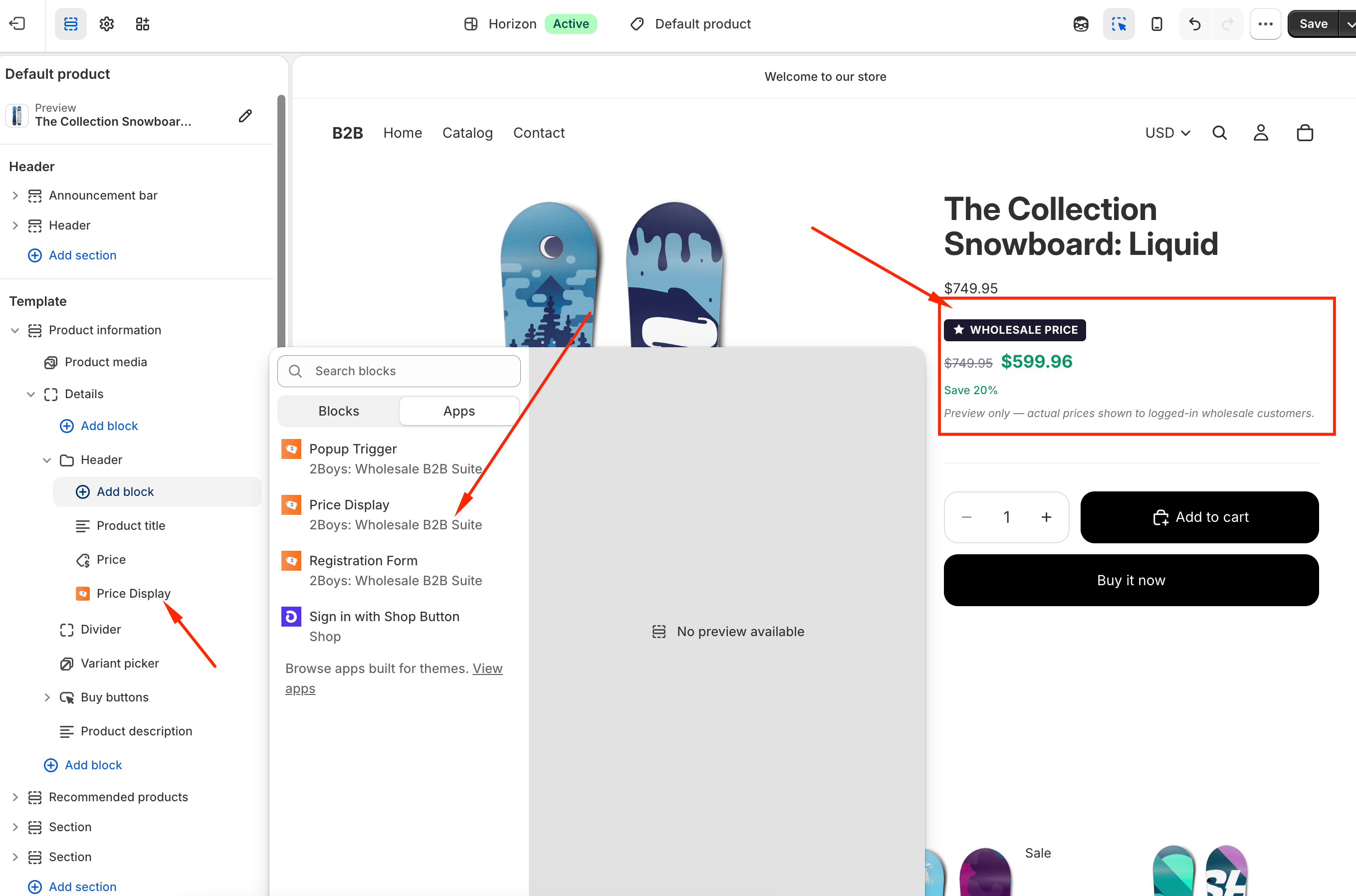
Section titled “Add the block to your product template”The fastest path is the deep link in the dashboard Setup Guide — it opens the theme editor with the block pre-selected on your product template. You can also add it manually:
- In your Shopify admin, go to Online Store → Themes and click Customize on your live theme.
- From the template dropdown at the top, switch to Products → Default product (or whichever product template you want the block on).
- In the section where the price renders, click Add block and pick Price Display under the Apps group.
- Drag the block so it sits directly below the product price. This is the position most themes are designed for and what your buyers will expect.
- Click Save.
What each visitor sees
Section titled “What each visitor sees”The block renders different content based on who’s viewing the page:
| Visitor | What they see |
|---|---|
| Approved wholesale customer (logged in) | A badge (Wholesale Price by default), the retail price struck through, the group price, and the savings. |
| Logged-in customer with no wholesale group | Nothing — the block is hidden. |
| Guest (not logged in) | The Log in to see wholesale pricing prompt, linked to your login page. Can be turned off per-block. |
| Theme editor preview | A sample wholesale price so you can lay it out without logging in as a wholesale customer. |
How the app recognises a wholesale customer: when you approve an
application or add a customer to a group, the customer gets a tag in
the form wholesale-{group-slug}. The block reads this tag in Liquid,
then asks the app for the live price for that group + variant. If you
ever remove the tag manually, the block stops showing for that customer.
Block settings
Section titled “Block settings”The block exposes a handful of settings in the theme editor.
Show message for guests
Section titled “Show message for guests”When on, visitors who aren’t logged in see a link to the login page where the wholesale price would otherwise appear. Turn it off if you don’t want any wholesale signalling on product pages for guests (common when you also hide prices from non-wholesale customers).
Login page URL
Section titled “Login page URL”Optional. Leave blank to use Shopify’s default /account/login. Set a
custom URL if you’ve built a dedicated wholesale login page or want to
send guests to your registration form instead.
Spacing
Section titled “Spacing”Top margin and Bottom margin let you nudge the block away from the price line above and the Add to cart button below. The defaults (8 px top, 12 px bottom) work for most Dawn-family themes; bump them up on themes with tight vertical rhythm.
Customising badge text and the guest message
Section titled “Customising badge text and the guest message”The badge label (Wholesale Price) and the guest prompt (Log in to see wholesale pricing) are not edited per-block — they live in the app so they stay consistent across every product and translate cleanly.
To edit them:
- Open Settings → Translations in the app.
- Pick the language you want to edit.
- Update Price badge text and Guest message.
- Save. The block picks up the new strings on the next page load — no theme save required.
The block uses the visitor’s storefront locale: it tries the exact
locale first (fr-CA), then the base language (fr), then English,
then a built-in default. So you only need to translate the languages
you actively sell in.
Troubleshooting
Section titled “Troubleshooting”The block doesn’t appear for a wholesale customer.
Confirm the customer has a wholesale-{slug} tag matching one of your
groups. Open the customer in Shopify admin → Tags. If the tag is
missing, re-add them to the group from the app’s Groups page.
The block appears but shows the retail price (no discount). There’s no price rule covering that group + product. Open Pricing → Price rules, check the rule’s group, products, and that it’s enabled.
The block shows a loading spinner forever. Usually means the Wholesale Storefront app embed is off in the live theme. Open the Setup Guide on the dashboard — the Storefront setup step will be red, and the Activate button reopens the embed in the theme editor.
The price flashes (retail → wholesale) on page load. Expected on first paint: the block ships server-rendered with the retail price and JavaScript swaps in the wholesale price once it fetches. Themes with aggressive section caching can make this more noticeable; the flash is purely visual and never affects checkout.
Place the Wholesale Registration block so new customers can apply, or set up the customer account profile block so approved buyers see their wholesale status in their account.