Customer Account Profile
The Wholesale account block sits on each customer’s profile page inside Shopify’s new customer accounts. It tells the customer exactly where they stand: approved, under review, rejected, or no application yet. Approved buyers see their wholesale group and discount so they know what pricing applies before they shop.
This block is optional — every other part of the app works without it. Add it when you want buyers to be able to self-serve the answer to “am I getting wholesale prices right now?” without having to email you.
Prerequisites
Section titled “Prerequisites”- Your store uses Shopify’s new customer accounts (not legacy classic accounts). The block is a customer-account UI extension and only renders in the new experience.
- At least one approved wholesale customer in a group, otherwise you’ll only see the empty-state in preview.
Add the block to the profile page
Section titled “Add the block to the profile page”The dashboard Setup Guide’s Customer account profile card links straight to Shopify’s customer-account settings. From there:
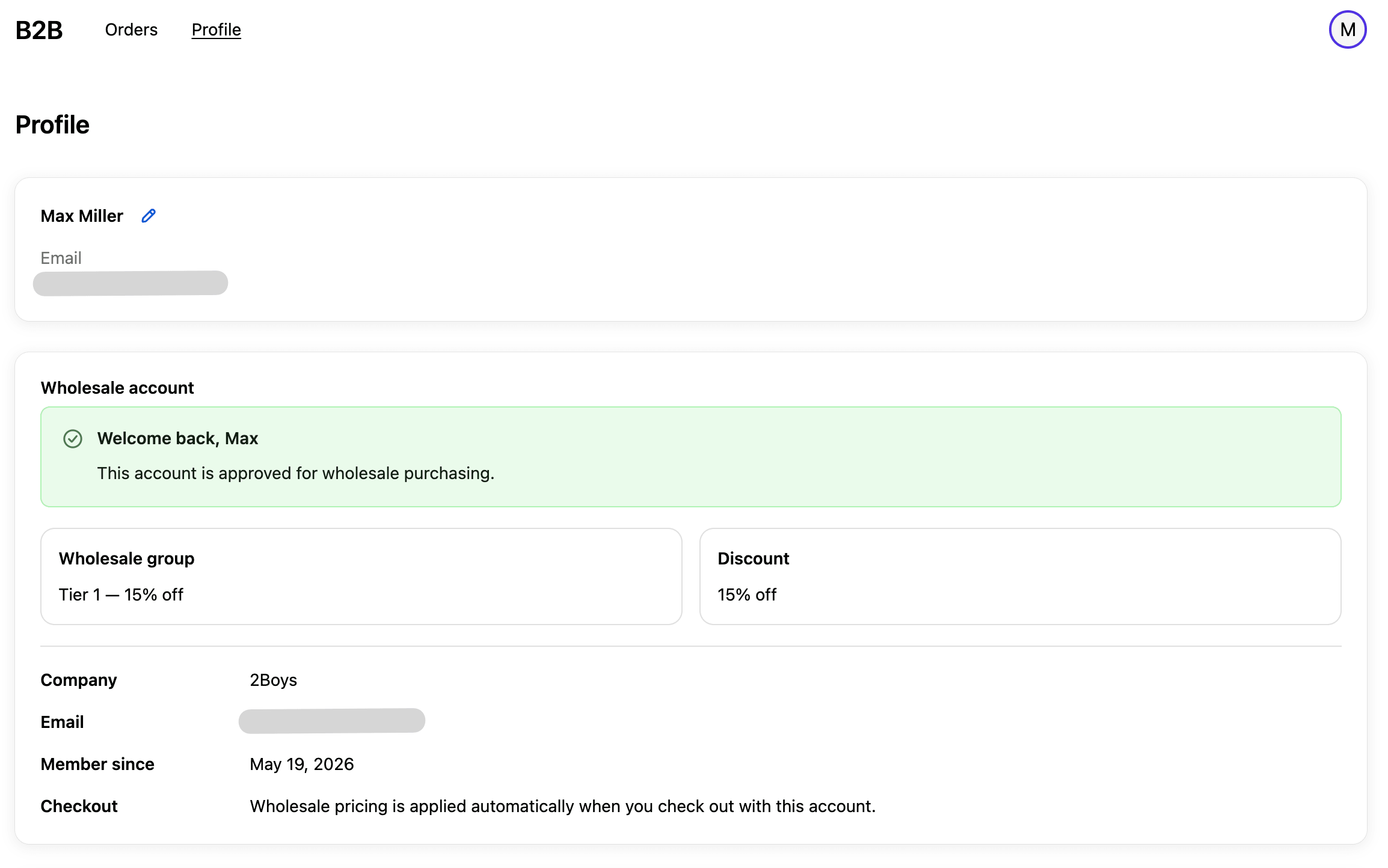
- In Shopify admin, go to Settings → Customer accounts and click Customize under Customer account profile.
- Open the Profile page in the editor.
- Click Add block and pick Wholesale account from the Apps list.
- Drag the block to wherever you want it on the page. A common placement is just below the Personal information block so wholesale status sits near the customer’s own details.
- Click Save.
What each customer sees
Section titled “What each customer sees”The block renders one of four states based on the customer’s application and group membership.
Approved
Section titled “Approved”The most common state for active wholesale buyers.
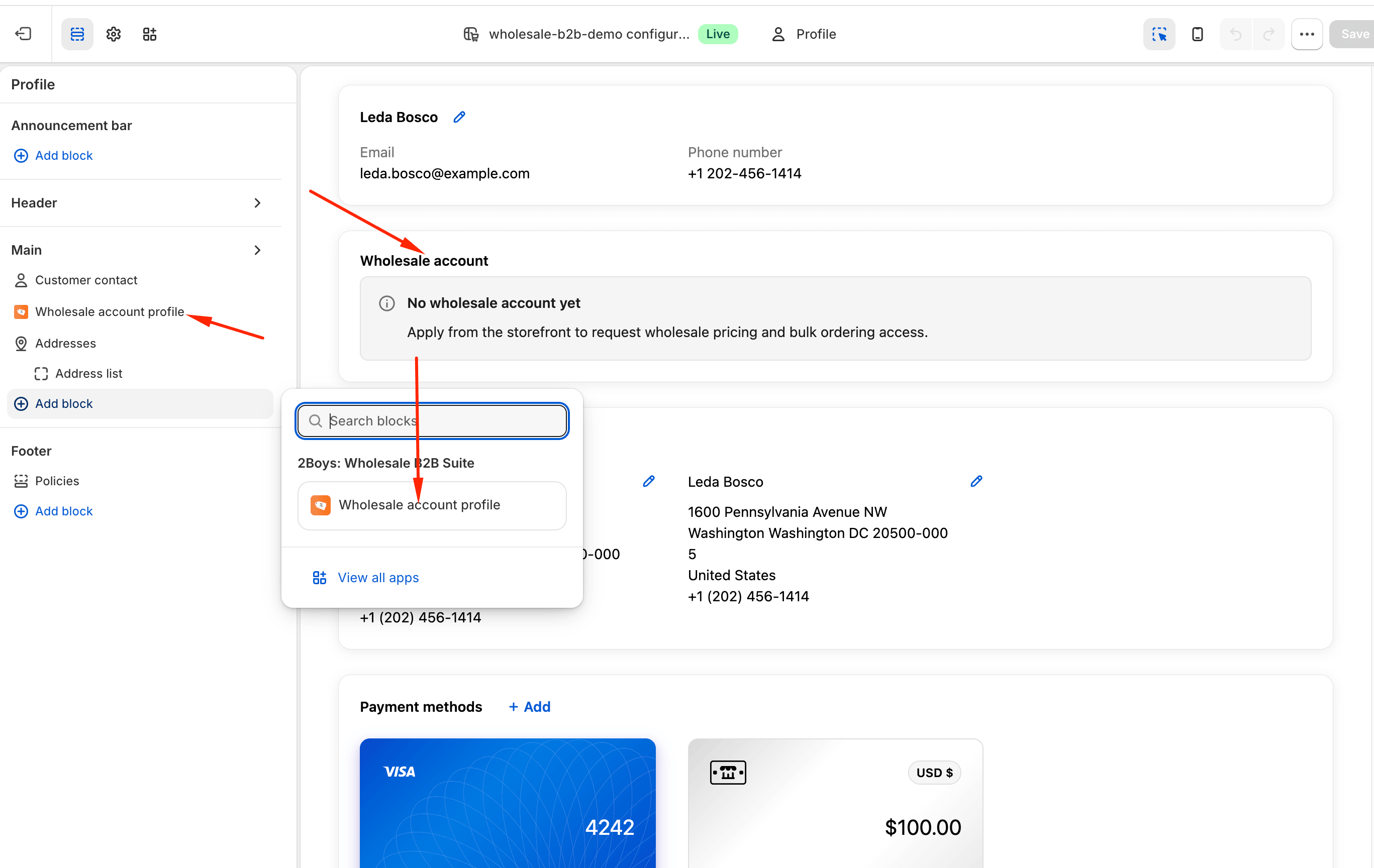
- Banner: “Welcome back,
{first name}” (or a generic “Wholesale pricing is active” if there’s no first name) with a confirmation that wholesale purchasing is enabled. - Group card: the wholesale group name.
- Discount card: a human-readable label for the discount, e.g. 15% off or Custom prices on selected products.
- Details list: company name (if provided on the application), account email, member since month-day-year, and a reminder that wholesale pricing is applied automatically at checkout.
Pending (under review)
Section titled “Pending (under review)”Shown to anyone who submitted a registration form but hasn’t been approved or rejected yet.
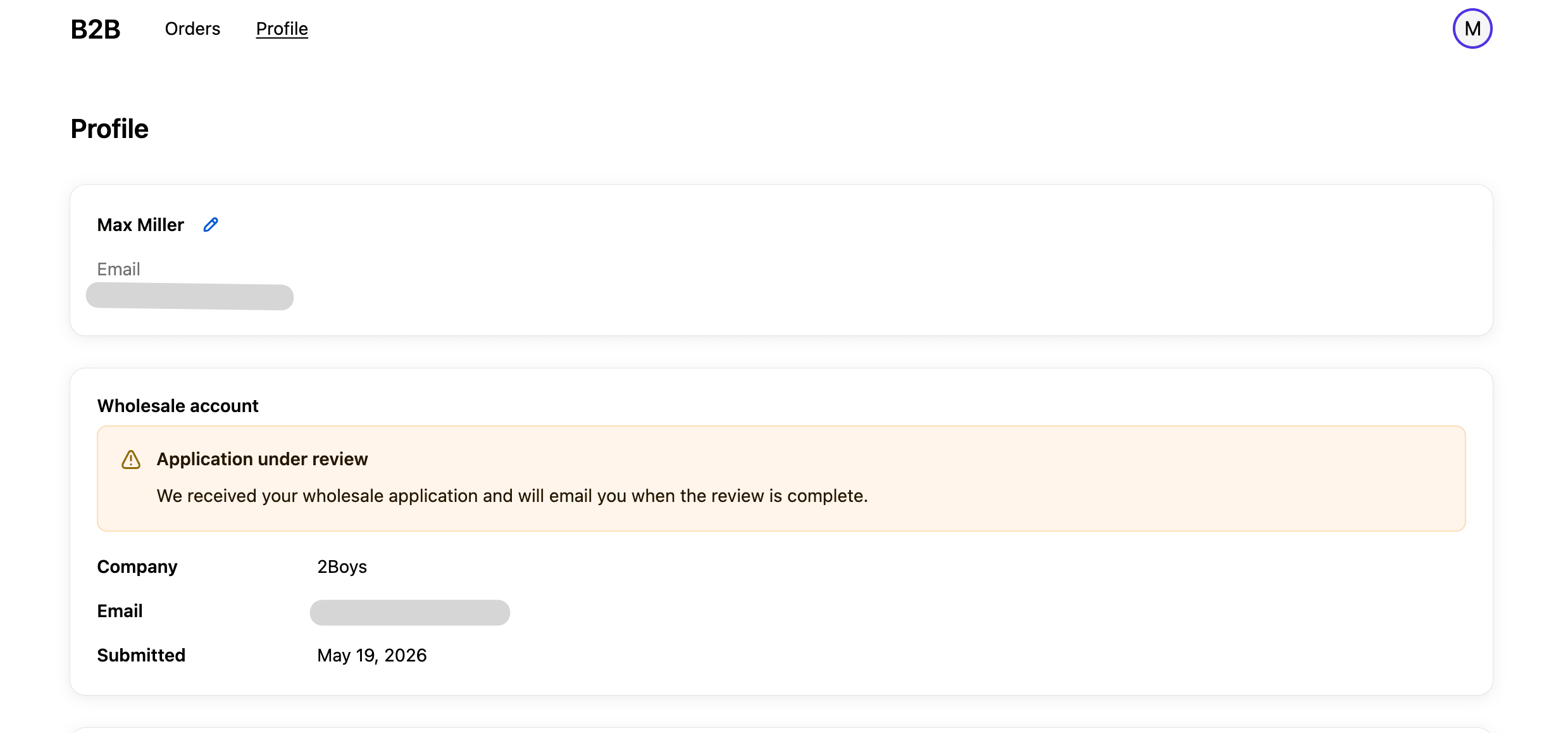
- Warning banner: confirms the application was received and the decision will be emailed.
- Details list: company name (if any), email, and the date the application was submitted.
Rejected
Section titled “Rejected”Shown when an application was reviewed and not approved.
- Critical banner: explains the application wasn’t approved this time and invites the customer to get in touch if their situation has changed.
- Details list: company, account email, decision date (falls back to submission date if the decision date isn’t set), and next steps copy pointing to reapplying with updated business details.
No application yet
Section titled “No application yet”Shown to logged-in customers with no wholesale application on record (typical for a regular retail customer who hasn’t applied).
- Info banner: “No wholesale account yet” — invites them to apply via the storefront form.
If the block fails to load (e.g. network error), the same slot shows a critical banner with “Wholesale account unavailable” instead. The rest of the customer’s profile page is unaffected.
How the data gets there
Section titled “How the data gets there”The block reads a single customer metafield (wholesale_profile under
the app’s namespace) via the Customer Account GraphQL API. The app
writes to this metafield whenever:
- An application is approved, rejected, or marked pending.
- A customer is added to or removed from a group manually.
- A group’s discount label changes.
You don’t need to wire anything up — the writes happen automatically on every relevant action in the app. If a customer’s status looks stale, re-saving their group membership from Groups → Customers in the app forces a refresh.
Removing the block
Section titled “Removing the block”Open the customer-account customizer again, select the Wholesale account block, and click Remove block → Save. The metafield stays in place so re-adding the block later restores the same view without losing any history.
Troubleshooting
Section titled “Troubleshooting”The block doesn’t appear in the customizer’s Add block list. The extension hasn’t been deployed to your store yet. Reinstall the app or contact support — once the extension is registered, Wholesale account shows up under the Apps group.
Approved customers see “No wholesale account yet.” The metafield wasn’t written for that customer. Open the customer in Groups → Customers and re-save their group assignment to trigger the metafield write.
Discount label says something unexpected. The label is derived from the matching price rule. Open the rule in Pricing and check the configured percentage, fixed amount, or custom prices — the label updates the next time the customer loads their profile page.
Round off the storefront setup by placing the Wholesale Price Display block on your product pages so approved buyers also see their group prices while they shop.