Price Rules
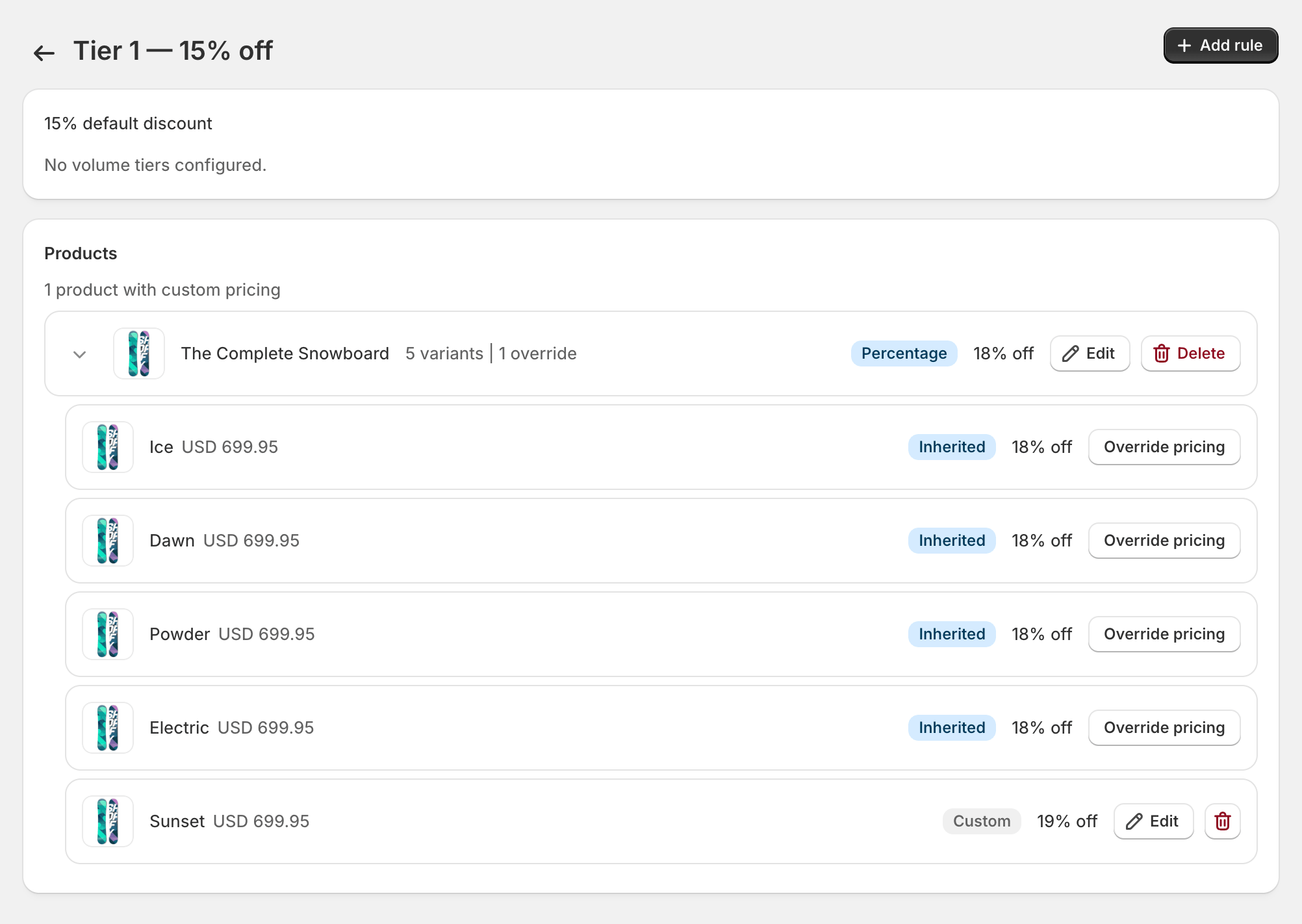
A price rule overrides a group’s baseline discount for a specific product or variant. Use them when one part of your catalog needs different margins from the rest — protected SKUs, MAP-restricted brands, or items where wholesale and retail prices are the same.
When to use a rule vs. the baseline
Section titled “When to use a rule vs. the baseline”The baseline discount on a group covers your default case (e.g. “wholesale buyers get 15% off everything”). Reach for a price rule when:
- One product needs a different percentage (Tier 1 = 15%, but the copper-wire SKU is 5%).
- You want to set an exact wholesale price ($24.50 per unit, regardless of retail price).
- You want to exclude a product from wholesale pricing (set a 0% rule — the baseline won’t apply).
Open the pricing editor
Section titled “Open the pricing editor”- Open Pricing in the sidebar. You’ll see a list of groups.
- Click the group you want to edit, e.g. Tier 1.
The pricing editor scopes everything to one group at a time. There’s no “all groups” view — every rule belongs to a single group.
Add a price rule
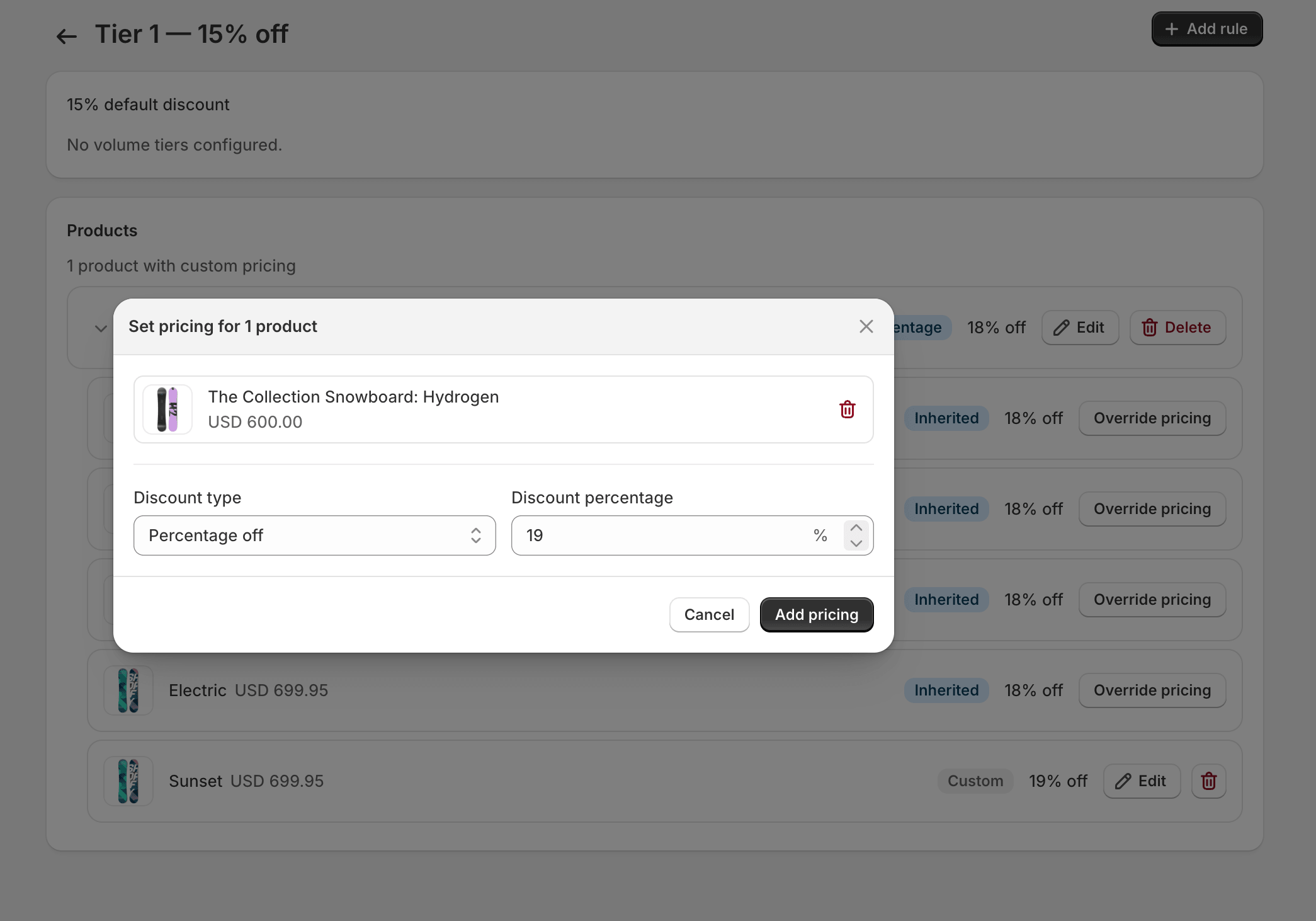
Section titled “Add a price rule”- Click Add rule.
- Search for the product. The picker shows products from your Shopify catalog, with each variant listed beneath it.
- Choose either the product (rule applies to all its variants) or a specific variant.
- Pick the discount type:
- Percentage — % off the product’s retail price.
- Fixed price — an exact unit price in your shop’s currency.
- Enter the value and click Add pricing.
How rules combine at checkout
Section titled “How rules combine at checkout”When a tagged customer reaches checkout, the app evaluates several candidate prices and picks the lowest:
- The product’s retail price (no discount).
- The group’s baseline discount applied to retail.
- Any matching price rule for this group + product/variant.
- Any matching volume tier for the cart quantity (see Volume Pricing).
This “best price wins” approach means you don’t have to worry about a buyer paying more because of a misconfigured rule — at worst they pay the baseline discount.
Edit or delete a rule
Section titled “Edit or delete a rule”- In the rules table, click the row you want to change.
- The same modal opens with current values pre-filled.
- Update and Save — or click Delete to remove the rule entirely.
Deleting a rule causes the buyer to fall back to the group’s baseline discount for that product. The change takes effect at the next checkout — usually within a few seconds.
Troubleshooting
Section titled “Troubleshooting”The rule doesn’t take effect at checkout
Section titled “The rule doesn’t take effect at checkout”Walk through this checklist in order:
- Customer signed in? Discounts only apply to logged-in customers.
- Customer tagged? Confirm in Shopify admin that the customer has the wholesale tag for their group.
- Just saved the rule? It can take a few seconds for the change to reach checkout. Wait a moment, then retry.
- Conflicting Shopify discount? If you have another product discount active in Shopify, it may take precedence. Disable any unrelated discount and try again.
The rule applies but the wrong amount
Section titled “The rule applies but the wrong amount”Check whether you have a volume tier for the same product — at the quantity tested, the tier may be cheaper, and “best price wins” picks that. See Volume Pricing.
I deleted a rule but the old price is still showing
Section titled “I deleted a rule but the old price is still showing”Storefront pages may cache for a few minutes. Hard-refresh the cart and try again — the change reaches checkout within a few seconds, but the storefront’s cached price can lag.
Up next
Section titled “Up next”For quantity-break pricing layered on top of these rules, head to Volume Pricing.