
Dashboard Overview
The app is organised the way most merchants think about wholesale: groups of buyers, prices for those groups, and a way for new buyers to apply.
Sidebar sections
Section titled “Sidebar sections”| Section | What lives there |
|---|---|
| Dashboard | At-a-glance metrics: active groups, total wholesale customers, pending applications. |
| Groups | Create, rename, reorder, and delete wholesale groups. |
| Customers | The list of buyers assigned to groups. Filter, move between groups, or remove. |
| Pricing | Per-product overrides and volume tiers. Scoped to one group at a time. |
| Registrations | Submitted applications, plus the form builder and email templates. |
| Settings | Store-wide toggles: hide prices, tax exemption, minimum order quantity. |
The dashboard
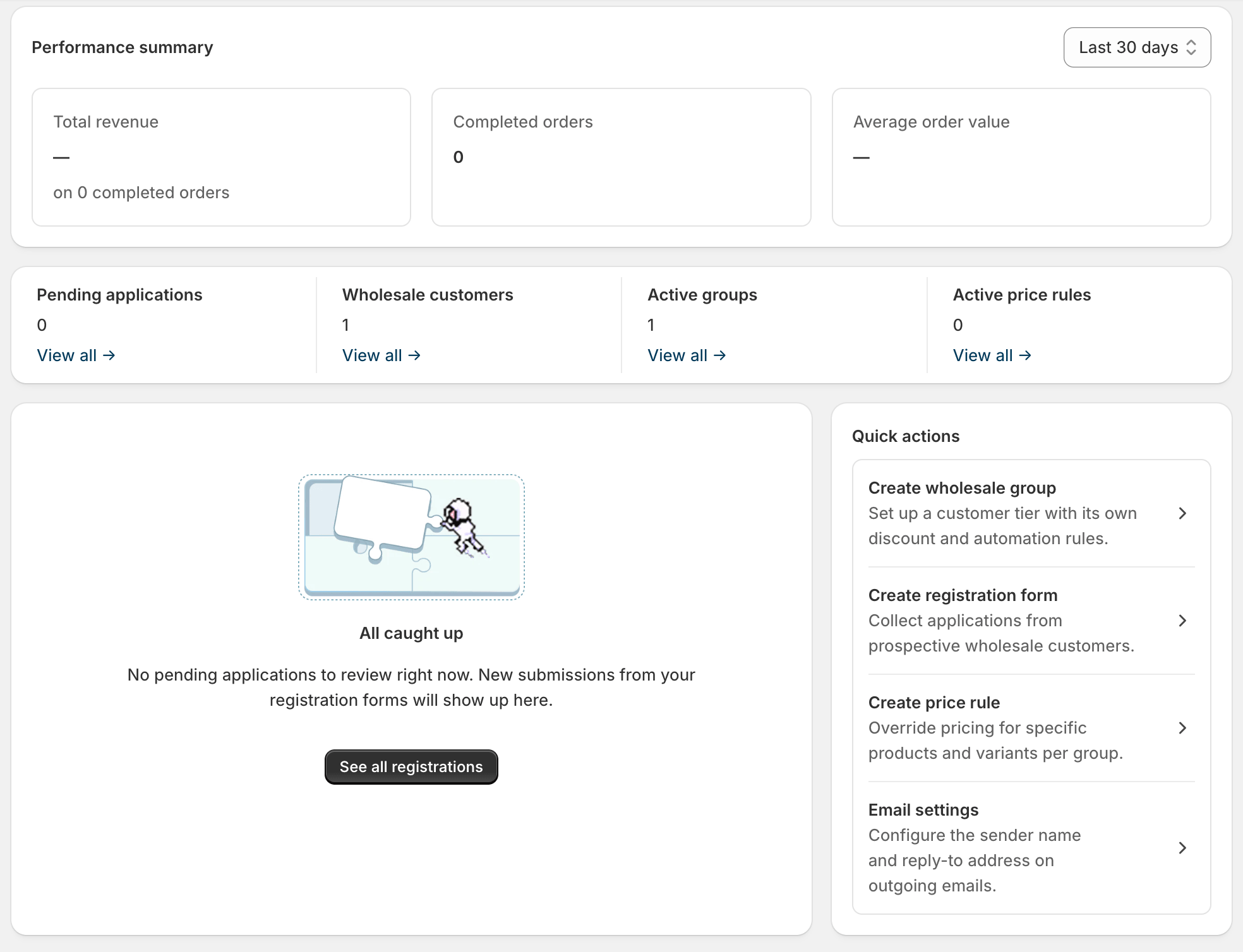
Section titled “The dashboard”The home page summarises the state of your wholesale program. Most numbers on this page are clickable shortcuts:
- Active groups opens Groups.
- Total wholesale customers opens Customers.
- Pending applications opens Registrations, filtered to status
pending.
If a number looks wrong, the most common cause is that a sync job is still running in the background. Refresh the page after a few seconds.

Top action bar
Section titled “Top action bar”Most pages have a primary action in the top-right corner — Add group, Add customer, Add price rule, and so on. When the page is busy (saving, syncing, deleting), the action turns into a spinner. Wait for it to finish before navigating away.
Saving and undoing
Section titled “Saving and undoing”Every form in the app saves on click; there’s no implicit save when you navigate away. If you change something and want to back out, just close the modal or navigate elsewhere — nothing is committed until you confirm.
Destructive actions (deleting a group, removing a customer, deleting a
form) ask for confirmation. Once confirmed, they take effect immediately
and cannot be undone from the app. If you delete a group, customers in
that group keep the wholesale-* tag in Shopify until you remove it
manually — the app doesn’t follow up to scrub tags after a group delete.
Where to go next
Section titled “Where to go next”- Set up your first group: Wholesale Groups → Overview.
- Configure store-level behavior: Store Settings.