Translations
If your store serves more than one language through Shopify Markets, you can translate every visible piece of copy in a registration form and its emails. Translations are per-form and per-locale, so different forms can have different language coverage.
When you need this
Section titled “When you need this”Skip this page entirely if your store is single-language. The default form copy will be served as-is to every visitor.
You’ll want translations when:
- Your store has Shopify Markets configured for multiple languages.
- You want wholesale applicants to see the form in their preferred language.
- You want approval and rejection emails sent in the applicant’s language, not your store’s primary language.
Open the translations editor
Section titled “Open the translations editor”- Open Registrations → Forms and select the form you want to translate.
- Click Translations in the form’s settings menu.
How translations work
Section titled “How translations work”Each form has a default locale — the language the form was originally written in. The default locale is your shop’s primary language and you don’t translate it; the source copy you typed in the form builder is what’s served.
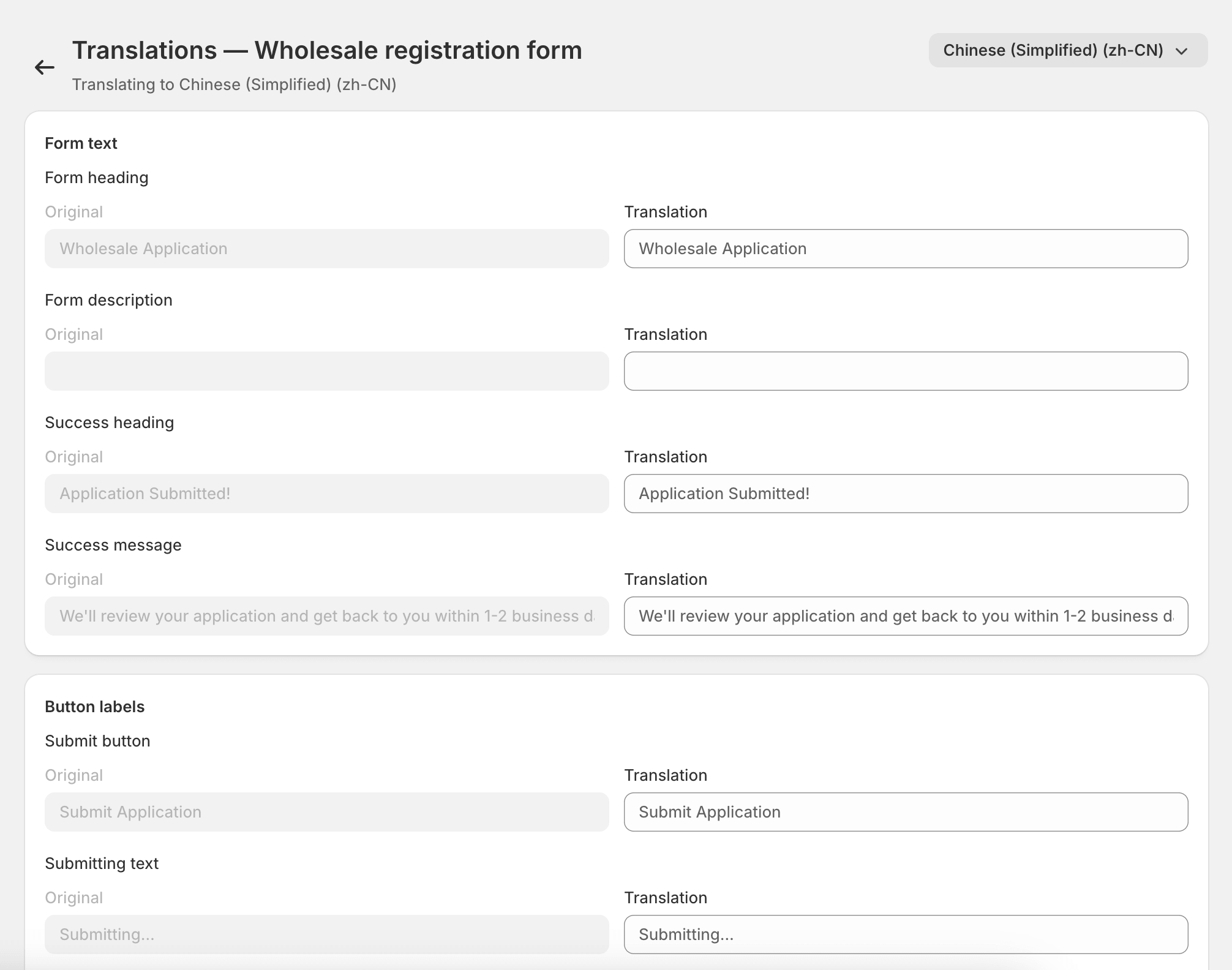
For every other locale Shopify Markets surfaces on your store, you can provide translations. The editor lists every translatable string for the form on the left, with a text box on the right for the locale you’ve selected.
Translatable strings include:
- Form heading and description
- Field labels, placeholders, and help text (for both built-in and custom fields)
- Submit button label
- Success heading and message
- Validation error text (e.g. “This field is required”)
- The approval and rejection email’s Subject and Body
Variable substitutions like {{first_name}} work in translations
exactly like in the source — just keep the curly braces in place.
Add a translation
Section titled “Add a translation”- From the Locale dropdown, pick the locale you want to translate into.
- For each row, type the translation into the right column. Empty rows fall back to the default locale, so you can translate strategically — translate the user-facing labels first and leave help text for later if you’re short on time.
- Click Save at the top of the page.
The translated form is served immediately to visitors whose Shopify Markets locale matches.
Which locale a buyer sees
Section titled “Which locale a buyer sees”The form picks the locale Shopify is already serving the rest of the page in. There’s no language picker built into the form itself — that keeps it consistent with the rest of your store.
For emails, the locale used is the one the applicant submitted the form in. If they applied through your German storefront, they’ll get the German approval email even if you later approve them on a different day from a different locale.
What’s not translated
Section titled “What’s not translated”- Group names. They’re internal to the app — buyers don’t see
them. The approval email’s
{{group_name}}substitution uses the group name as you wrote it in Groups; if you need it in different languages, write the group name in the language you’d want to send. - Custom field option values. A Select field’s options (e.g. Retailer / Distributor / Brand rep) translate as part of the field’s label — see them in the editor under the field’s row.
- The wholesale customer tag. Tags are technical identifiers and don’t need translating.
Removing a translation
Section titled “Removing a translation”To remove a translation for a single string, just clear the text box and save. To remove every translation for a locale, click the kebab on the locale dropdown and choose Remove locale.
Removing a translation makes the form fall back to the default locale for that string only — so you can have a form that’s mostly translated into French except for one untranslated string that shows in English.
Common gotchas
Section titled “Common gotchas”A long word breaks the layout. Some target languages produce much longer text than the source. If a label wraps awkwardly, shorten the translation. The form is unstyled by default, so it picks up your theme’s break behaviour — there’s no fix in the app.
The wrong locale is served. Make sure Shopify Markets has the target locale enabled and that the storefront URL reflects it. The form follows whatever language the page itself is in.
Email subject is in the wrong language. Check that you’ve actually translated the subject row — it’s at the bottom of the email section and easy to miss. Subjects can’t be inferred automatically from the body.
What’s next
Section titled “What’s next”You’re at the end of the Registration Forms section. From here:
- Reviewing Applications — the daily workflow for handling submissions.
- Email Templates — the source copy you’ll be translating.