Manage Customers
The Customers page is where you assign Shopify customers to wholesale groups. The app reads the customer list from Shopify on demand — you don’t need to import or sync anything ahead of time.
Add a customer to a group
Section titled “Add a customer to a group”- Open Customers in the sidebar and click Add customer.
- Start typing the customer’s name or email. The picker queries Shopify live, so any customer that exists in your Shopify admin will show up.
- Select the customer, choose a group, and click Add.
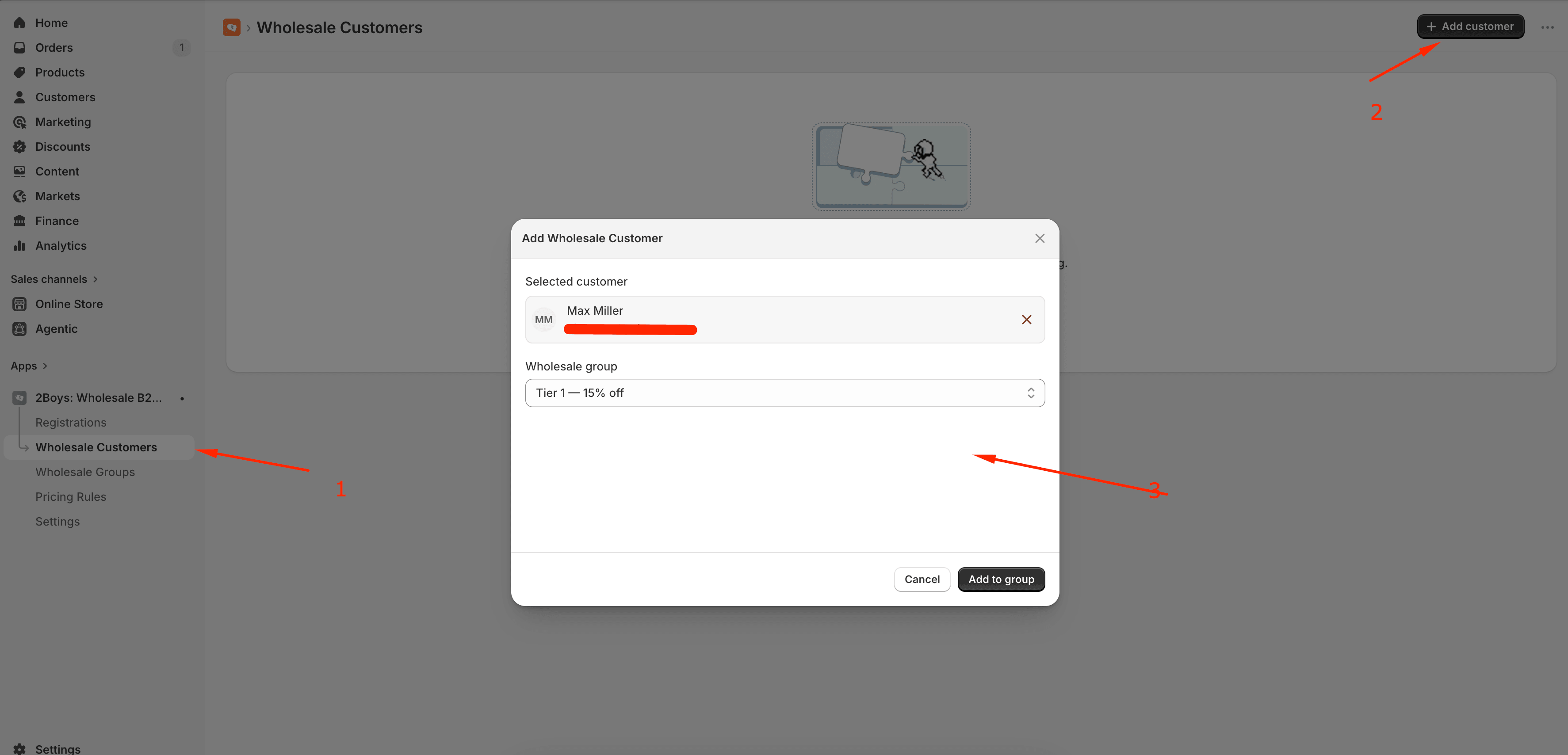
On save, the app does two things:
- Records the customer’s group membership inside the app.
- Adds the group’s wholesale tag (e.g.
wholesale-tier-1) onto the customer in Shopify.
The customer appears in the table immediately. The tag itself may take a few seconds to propagate to Shopify on a busy store.
Filter and search
Section titled “Filter and search”The customer table supports filtering by group and free-text search across name and email.
- Filter by group — multi-select. Pick Tier 1 and Tier 2 to see customers in either group. Useful before bulk-changing tiers.
- Search — matches against the cached display name and email. To find a customer who isn’t tagged yet, use Shopify’s customer search instead; this view only shows customers already linked to a group.

Move a customer between groups
Section titled “Move a customer between groups”- Find the customer in the table and click the kebab (⋯) menu on their row.
- Choose Change group.
- Pick the new group and confirm.
The app swaps the customer’s wholesale tag in Shopify (removing the old one, adding the new one) and updates their membership in the app, all as a single change. If anything fails partway through, nothing is changed.
Remove a customer
Section titled “Remove a customer”- Click the kebab menu on the customer’s row.
- Choose Remove from group and confirm.
The app removes the customer’s wholesale tag in Shopify and clears their group membership in the app. The customer themselves is not deleted — they remain a regular Shopify customer with retail prices.
If you need to revoke wholesale access for a customer who’s been suspended or who didn’t pay an invoice, this is what you want.
Bulk operations
Section titled “Bulk operations”The current version supports one-customer-at-a-time edits in the UI. For larger moves (hundreds of customers at once), tag them in Shopify directly with the auto-tag, then use the Sync from tags action under Settings → Store Settings. The next sync sweep will pick them up.
Common questions
Section titled “Common questions”The customer’s tag is gone in Shopify but the row is still here. Someone removed the tag manually in Shopify admin, bypassing the app. Click Remove from group in Wholesale B2B Suite to clean up the row. The discount won’t apply at checkout regardless — the tag is the source of truth there.
A customer says the discount didn’t apply. Two things to check, in order: (1) the customer is signed in at checkout, (2) the customer’s Shopify record actually has the wholesale tag for their group.
Up next
Section titled “Up next”Now that you have buyers in groups, set up Price Rules to override individual product prices.