Installation
This page covers a clean install on a new store. If you’re upgrading from an older version of the app, your data and settings carry over — you only need to re-approve scopes if we’ve changed them.
Requirements
Section titled “Requirements”- A Shopify store on Basic, Shopify, Advanced, or Shopify Plus. The app works on Plus, but on Plus you may prefer Shopify’s native B2B catalogs.
- A modern theme (Dawn, Sense, Refresh, or any other recent free or paid theme). The registration form needs a theme that supports app sections — if you’re on an older theme that doesn’t, you can still use the pricing features without the form.
- A Shopify customer account you control, for testing.
Install the app
Section titled “Install the app”- Open the app listing on the Shopify App Store.
- Click Add app, then Install app on the Shopify approval screen.
- When Shopify shows the permissions review, click Install to approve.
The app only reads what it needs to operate the wholesale features — products and variants for pricing, customers for group membership, and your active theme so we can detect whether the storefront blocks have been placed. It does not read order details for any other purpose.
Follow the Setup Guide on the dashboard
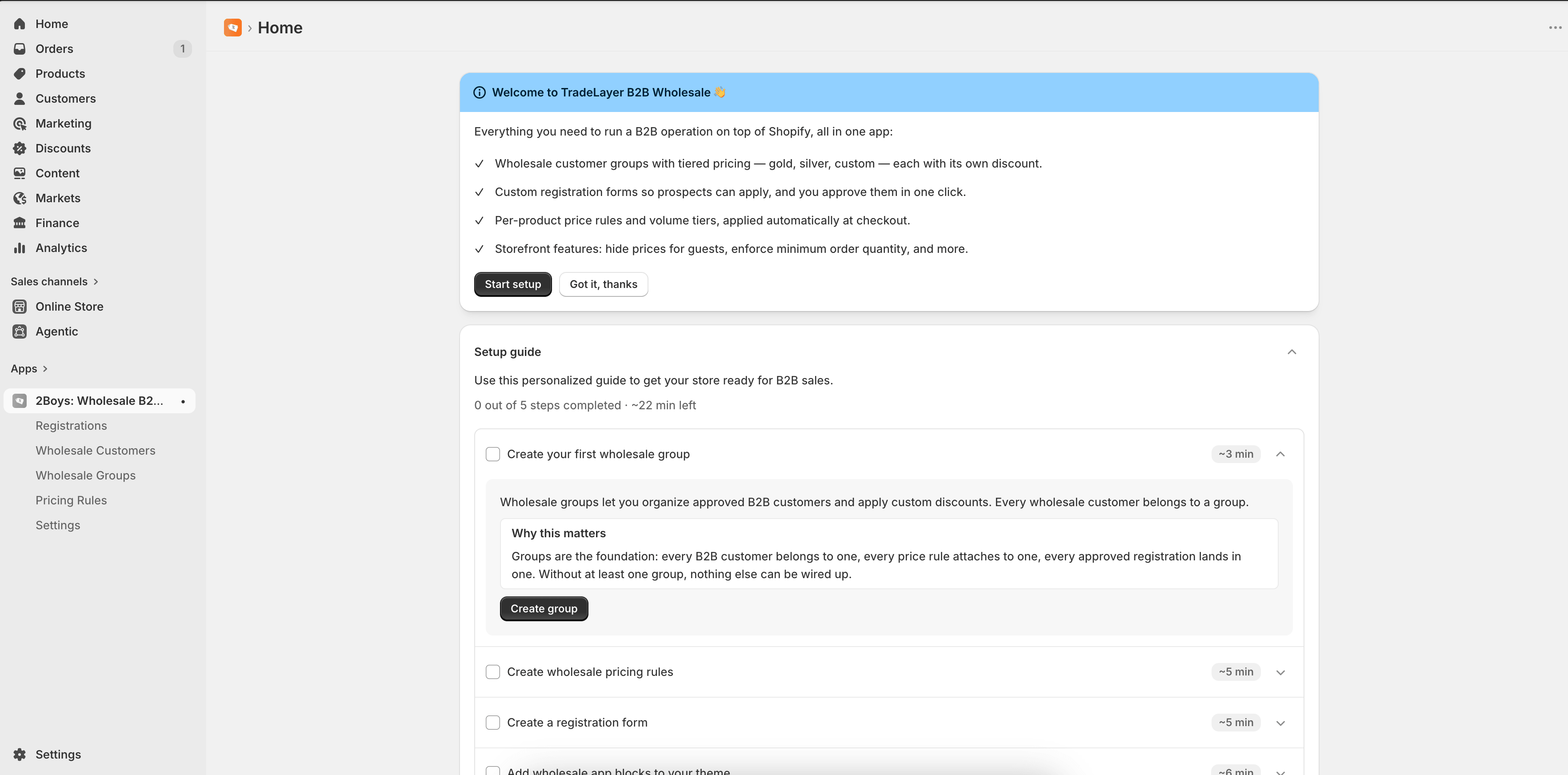
Section titled “Follow the Setup Guide on the dashboard”After install, the app opens to a dashboard with a Setup Guide checklist. Each step is auto-checked as soon as the underlying data exists — there’s nothing to manually mark as done. The first incomplete step is expanded for you, and the whole guide collapses once everything is green.
You can work through the steps in any order, but the order below matches the natural flow: decide who gets wholesale pricing, what prices they see, how they apply, where it shows up on the storefront, and which email address sends customer notifications.
1. Create a customer group
Section titled “1. Create a customer group”Wholesale groups are how the app decides which customers see wholesale prices and which registration form to send them through. Open Groups from the navigation and create at least one group (for example, Retailers or Tier 1).
2. Create a price rule
Section titled “2. Create a price rule”Open Pricing and add a rule that maps your group(s) to either a percentage discount, a fixed amount off, or specific custom prices on chosen products and variants. The checkout discount that applies the rule is wired up automatically at install — you don’t need to create a Shopify discount yourself.
3. Create a registration form
Section titled “3. Create a registration form”Open Forms under Registrations and build the application form wholesale customers fill out. You decide which fields are required and which group the approved customer is added to.
4. Add the storefront blocks
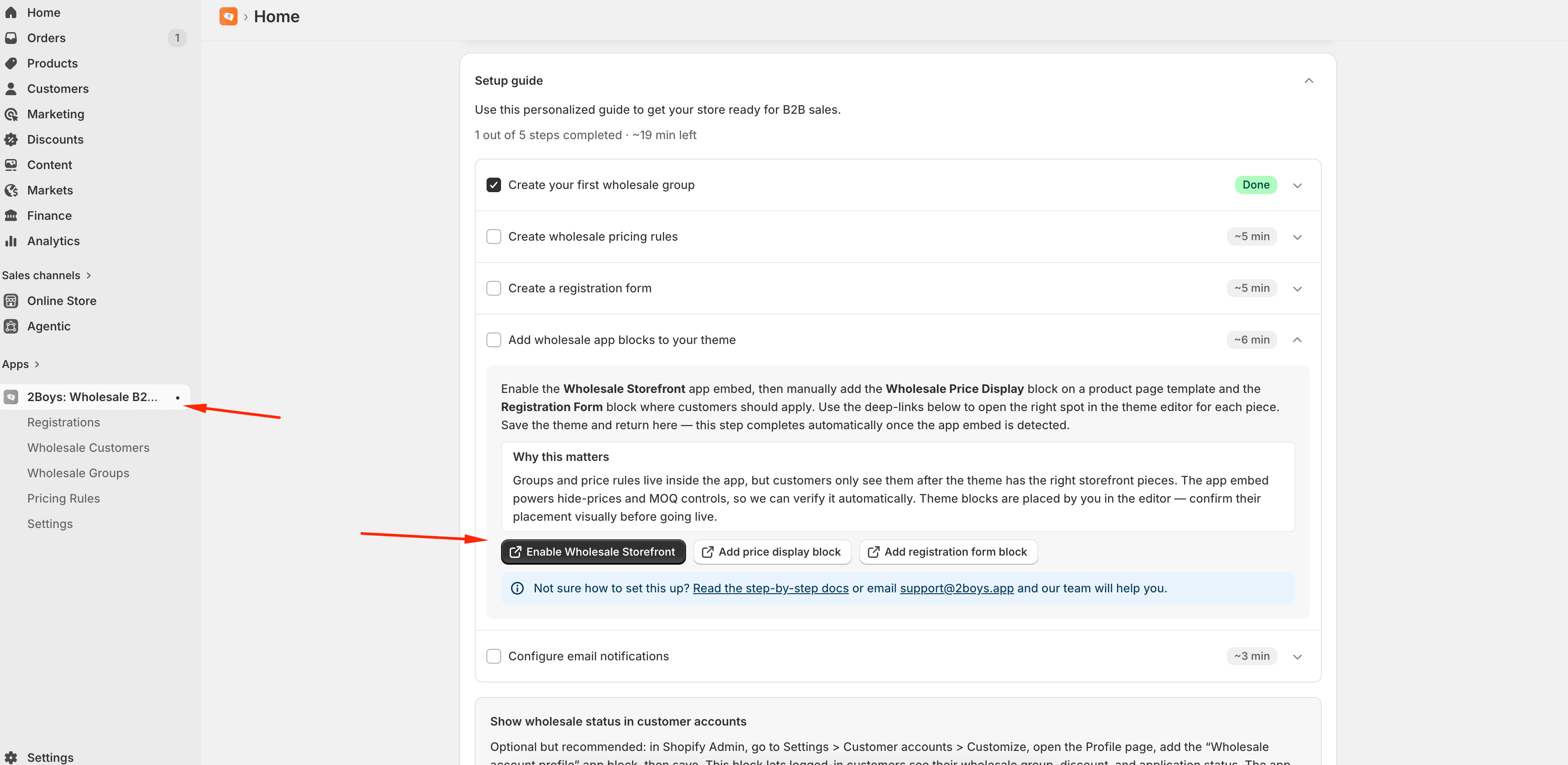
Section titled “4. Add the storefront blocks”The Setup Guide’s Storefront setup step opens the theme editor with the right block pre-selected. There are three deep-link buttons — run each one once:
- Activate the Wholesale Storefront app embed. This is the master switch that wires every storefront feature (price visibility, minimum order quantity, customer-facing notices). Flip the toggle to on and click Save. Full walkthrough in Wholesale Storefront App Embed.
- Add the Wholesale Price Display block to your product pages so logged-in wholesale customers see their group’s price inline. Full walkthrough in Wholesale Price Display.
- Add the Wholesale Registration block to the page where customers apply (a dedicated Wholesale page works well, but the homepage or any template is fine). In the block’s settings, pick which form created in step 3 to render.
Adding these blocks doesn’t modify any theme files — they’re standard Shopify app blocks placed through the theme editor.
5. Configure the email sender
Section titled “5. Configure the email sender”Open Registrations → Email settings and set the address that sends approval and rejection emails to applicants. Without this, those emails fall back to a generic sender and may land in spam.
Customer account profile (optional)
Section titled “Customer account profile (optional)”If you use Shopify’s new customer accounts, you can add the Wholesale account block to each customer’s profile page so they see their group, discount, and application status at a glance. The Setup Guide links straight to Shopify’s customer-account settings — full walkthrough in Customer Account Profile. This is optional — the rest of the app works without it.
Privacy
Section titled “Privacy”The app respects Shopify’s customer privacy controls. When a buyer asks you to delete their data through Shopify, any wholesale registration and group membership tied to that customer is removed automatically. When you uninstall the app, all shop-scoped data is scheduled for deletion within 48 hours.
You don’t need to configure anything for this — it’s handled automatically.
Take a look around: Dashboard Overview walks through each section of the app.