Quick Start
This guide gets a wholesale discount running end-to-end on your store. You’ll finish with one wholesale group, one tagged customer, and a verified discount applied at checkout.
You’ll need:
- A Shopify store you have admin access to (any plan).
- A test customer account you can place orders with.
- About ten minutes.
1. Install the app
Section titled “1. Install the app”- Open the Wholesale B2B Suite listing in the Shopify App Store and click Add app.
- Pick the store you want to install on, then approve the permissions Shopify shows you. They cover what the app needs to read your catalog and manage wholesale tags on customers.
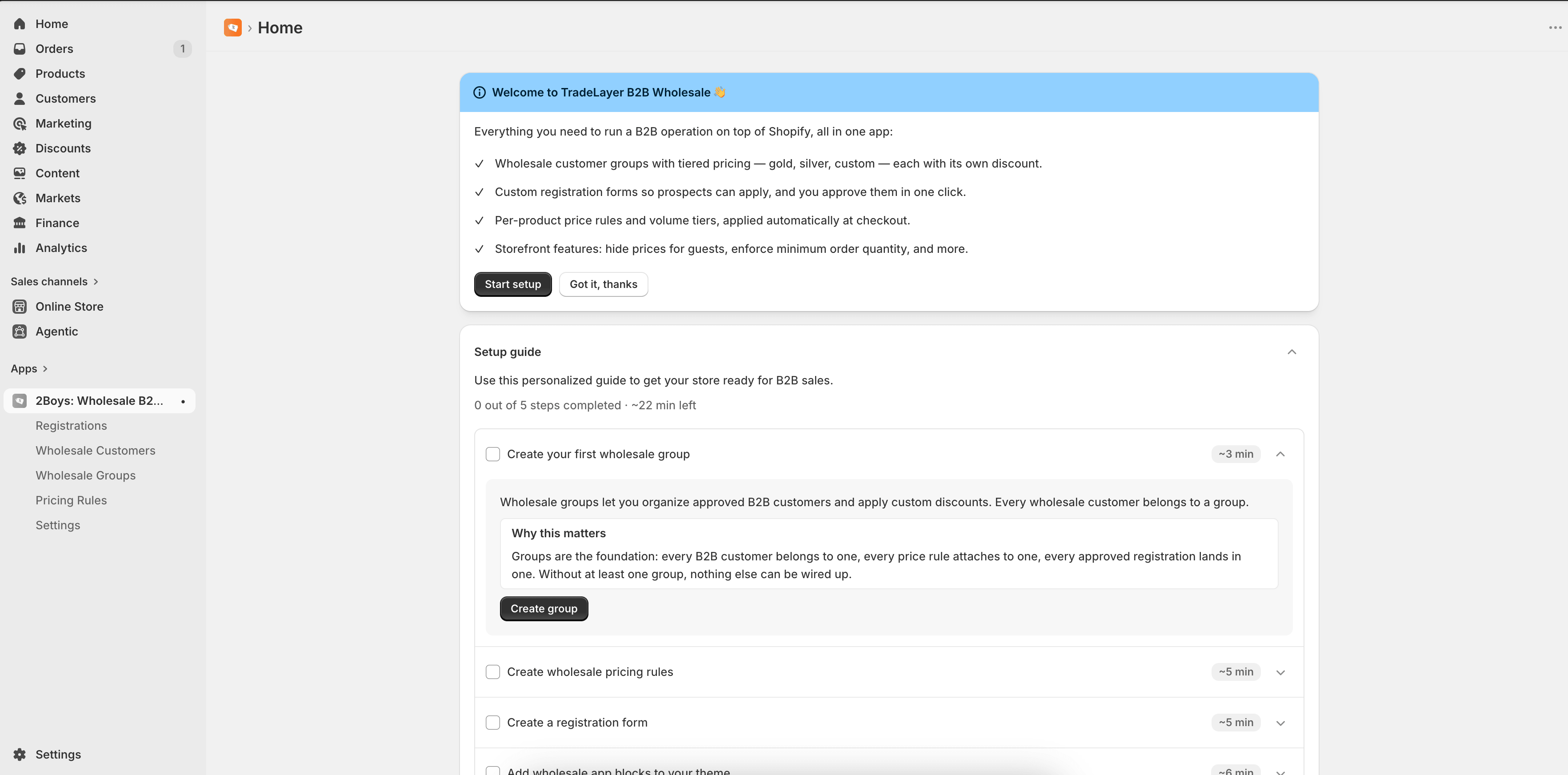
- Wait for the install to finish. You’ll land on the app dashboard inside your Shopify admin.
2. Create a wholesale group
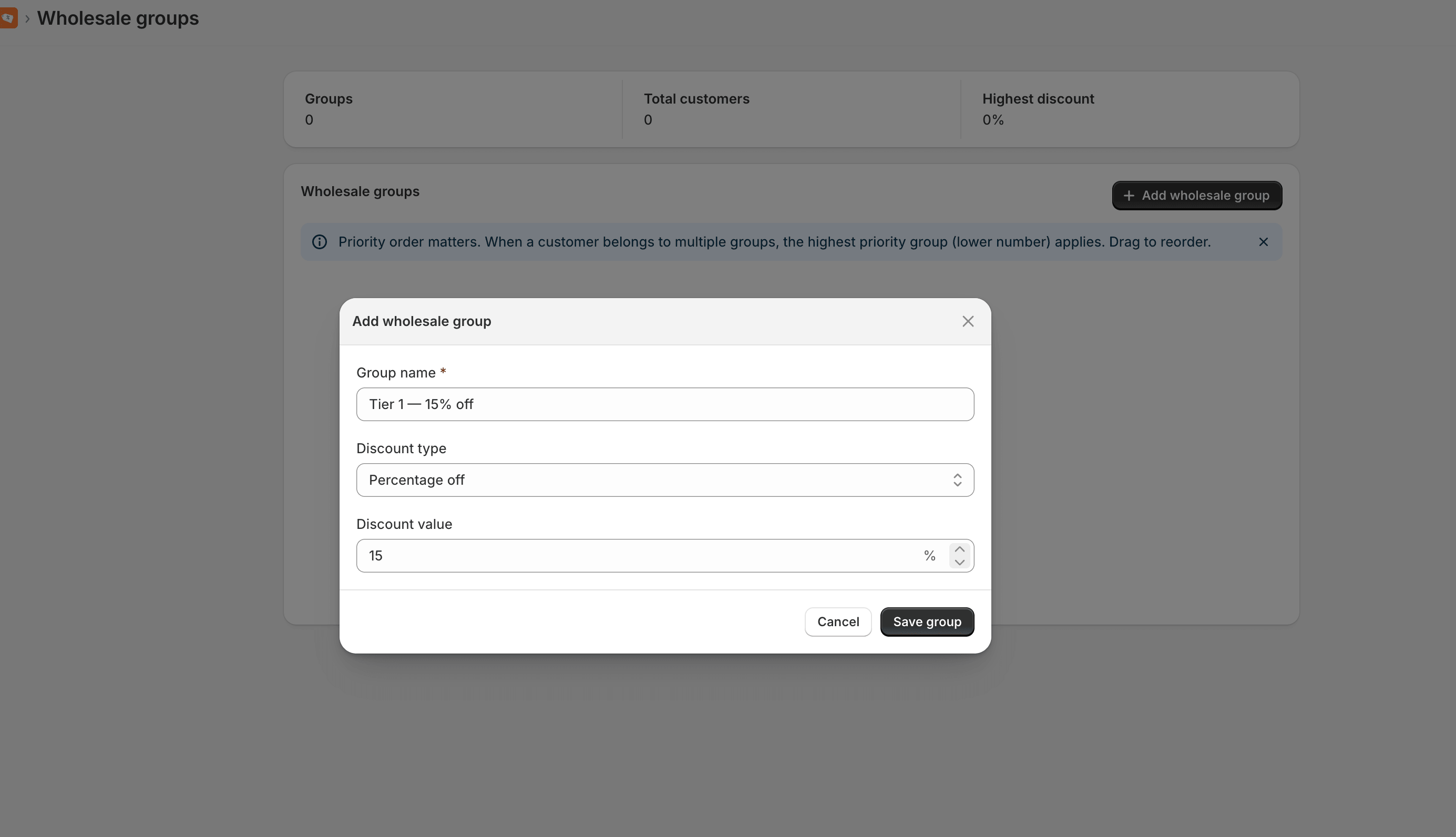
Section titled “2. Create a wholesale group”A group is the bucket you’ll put wholesale buyers into. Every group has a baseline discount that applies to every product in your catalog — you can override individual products later.
- From the app dashboard, click Groups → Add group.
- Give the group a name, e.g. Tier 1 — 15% off.
- Choose Percentage as the discount type and enter
15. - Click Save.
3. Add a customer to the group
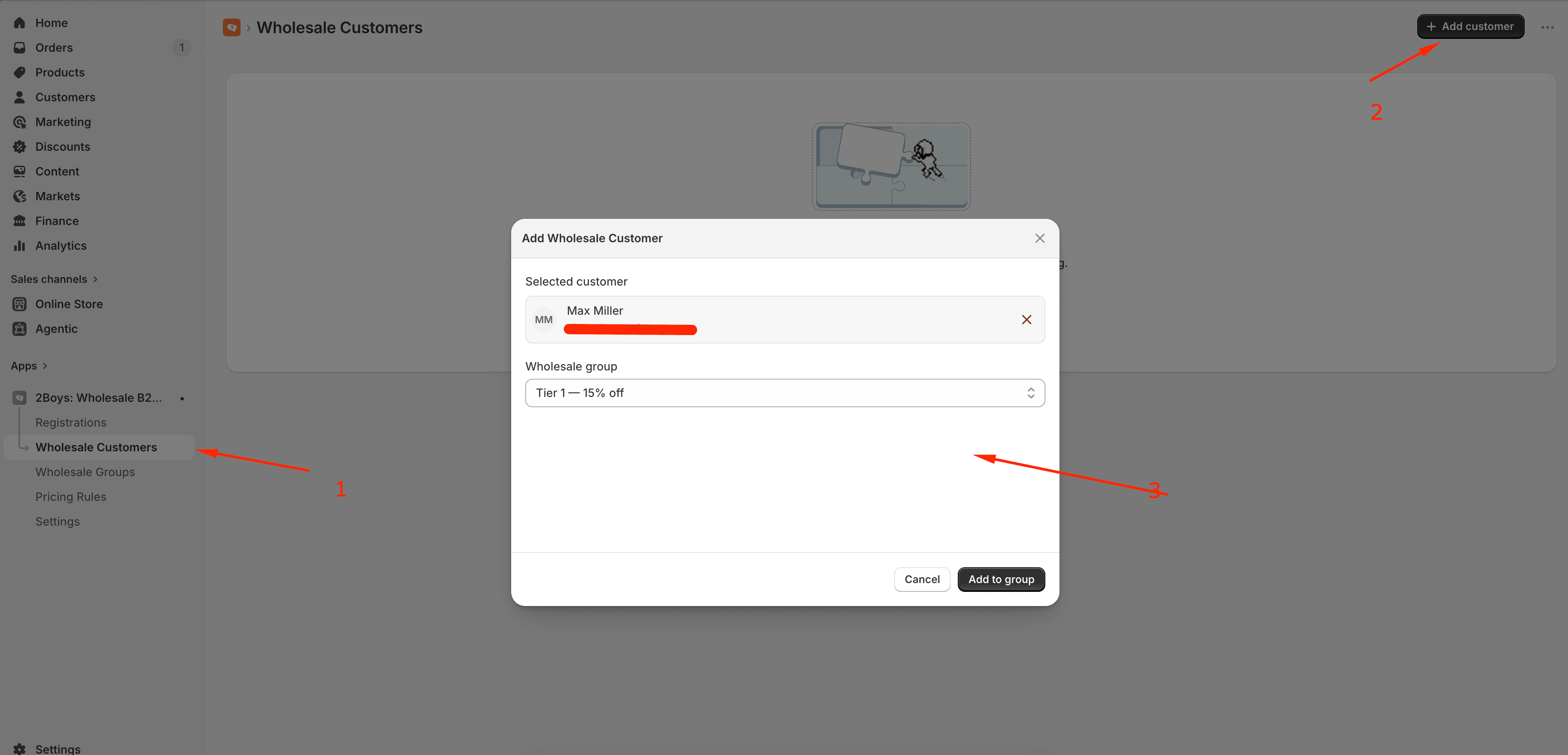
Section titled “3. Add a customer to the group”- Open Customers in the app sidebar and click Add customer.
- Search for your test customer by name or email.
- Pick the Tier 1 group from the dropdown and click Add.
Behind the scenes, the app writes the tag wholesale-tier-1-15-off onto
that customer in Shopify. You can confirm by opening the customer in your
Shopify admin and checking their tags.
4. Verify the discount at checkout
Section titled “4. Verify the discount at checkout”- Sign in to the storefront as your test customer.
- Add any product to the cart and head to checkout.
- The line price should drop by 15%, and you’ll see Wholesale discount listed in the order summary.
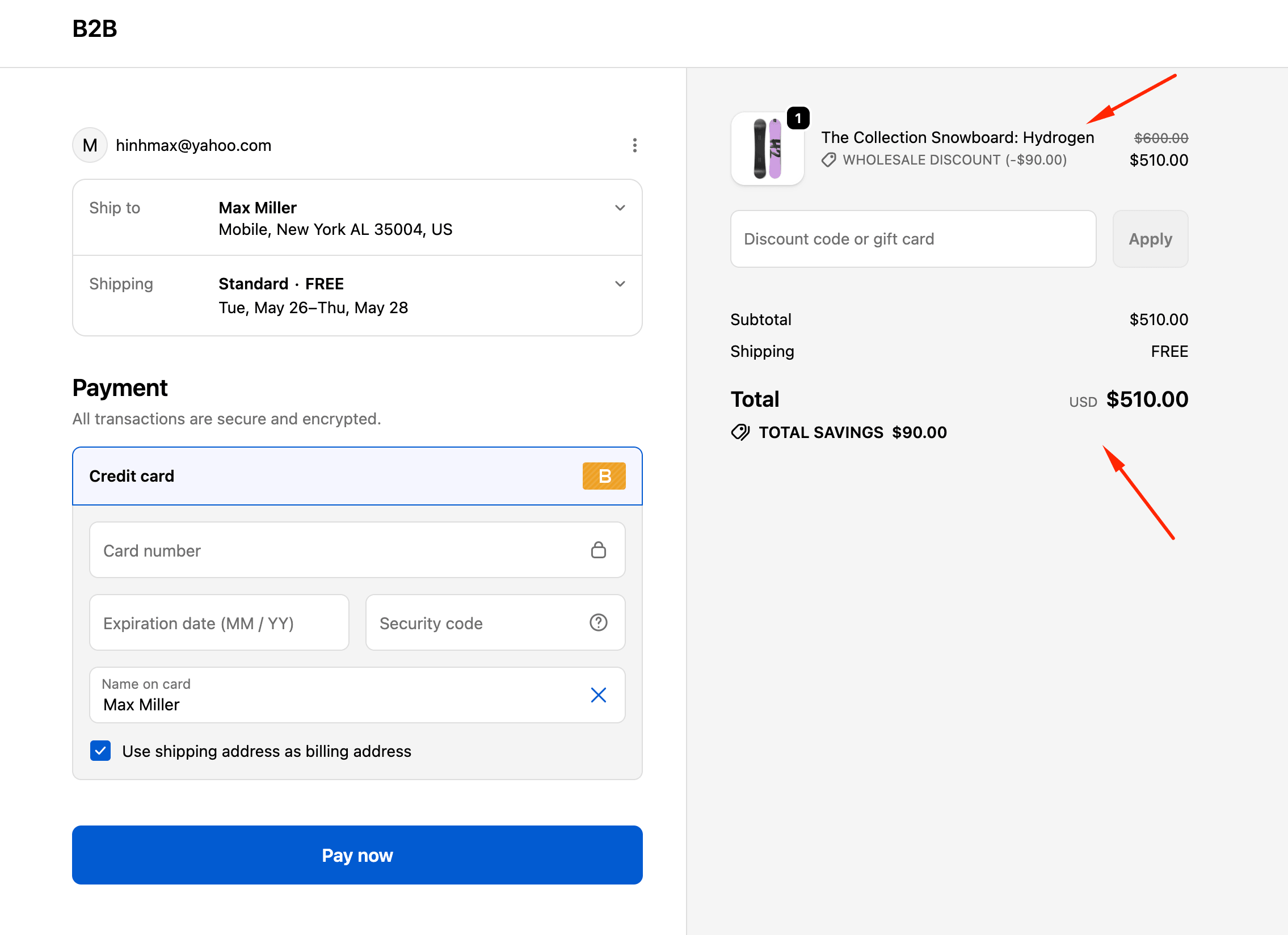
If the discount doesn’t appear, jump to Discount troubleshooting — ninety percent of the time it’s because the customer wasn’t signed in at checkout, or their wholesale tag didn’t sync.
What to do next
Section titled “What to do next”- Add per-product overrides → Price Rules
- Add quantity-break pricing → Volume Pricing
- Let buyers apply themselves → Registration Forms