Wholesale Storefront App Embed
The Wholesale Storefront app embed is the technical bridge between
the app and your live theme. It’s a single head-level embed you
enable once per theme — once it’s on, every storefront feature can be
toggled remotely from the app without ever re-opening the theme
editor.
If the embed is off, none of the storefront-side features take effect: prices won’t be hidden, the minimum order quantity won’t be enforced, and any future feature we ship will be inert until the embed is back on. This is why the dashboard Setup Guide treats it as a required step and shows a warning banner if it ever disappears.
What the embed actually does
Section titled “What the embed actually does”Once enabled, the embed wires up two features today (more may follow). Each one only runs if the matching toggle is on in Settings → Store Settings:
Hide prices for guests
Section titled “Hide prices for guests”When Hide prices for non-wholesale customers is on, the embed:
- Hides the standard Shopify price across every common theme selector (Dawn, Refresh, Sense, Crave, Studio, Origin, custom themes that follow Shopify’s class conventions).
- Inserts a Log in to see prices link in place of each hidden price,
pointing to
/account/login. The link text is per-locale (configured in Settings → Translations). - Skips this injection on product pages that already render the Wholesale Price Display block, so guests never see two “log in” prompts on the same page.
This runs only for guests. Logged-in customers (wholesale or retail) keep seeing prices normally.
Minimum order quantity (MOQ)
Section titled “Minimum order quantity (MOQ)”When Minimum order quantity is on with a value of N, the embed:
- Watches the cart in real time (via patched
fetch, XHR, theme events, and aMutationObserverfor cart-drawer re-renders). - Adds a warning banner above the checkout button telling the buyer exactly how many more items they need.
- Disables every checkout button until the cart has N or more items.
The disable is class-based on
<body>, which means it survives the cart drawer replacing its own HTML on every quantity change.
This runs only for logged-in wholesale customers (anyone with a
wholesale-{slug} tag). Retail customers never see the MOQ enforcement
even if the toggle is on.
Activate the embed
Section titled “Activate the embed”The fastest path is the Activate Wholesale Storefront deep link in the dashboard Setup Guide — it opens the theme editor with the embed pre-selected. You can also do it manually:
- In your Shopify admin, go to Online Store → Themes.
- Click Customize on your live theme.
- In the left sidebar, open the App embeds panel (icon looks like a puzzle piece, typically at the very bottom of the section list).
- Find Wholesale Storefront in the list and flip the toggle to on.
- Click Save in the top-right corner.
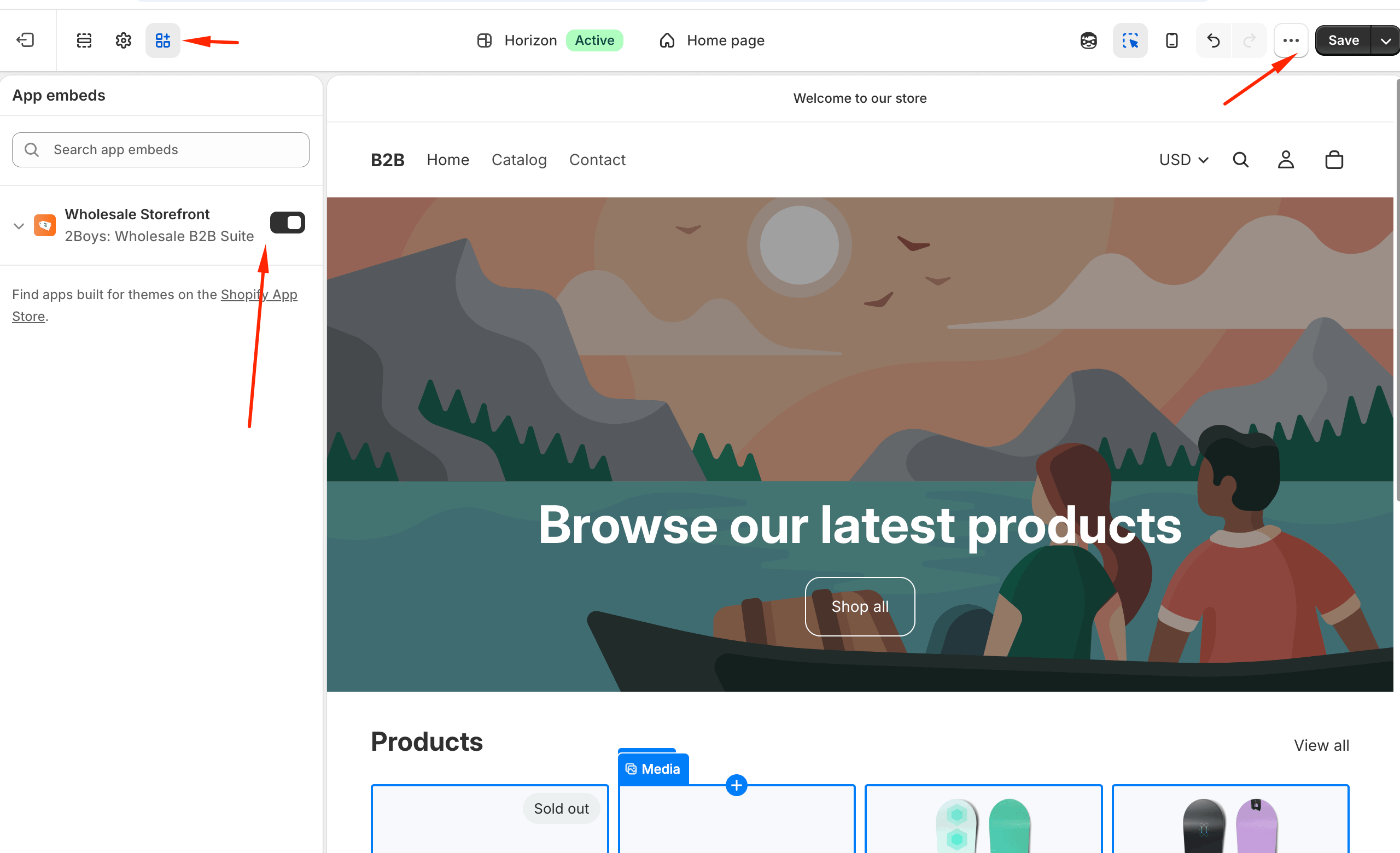
That’s it. The embed adds no UI of its own to the storefront — it injects only when one of the feature toggles in the app is on. Saving the theme with the embed enabled but every toggle off is the correct, quiet default.
Verify it’s enabled
Section titled “Verify it’s enabled”After saving, return to the app dashboard. The Setup Guide’s Storefront setup step should turn green within a few seconds (the app polls Shopify for the active theme’s embed status).
If you’d rather verify manually:
- Open your live storefront in a private/incognito window.
- View the page source and search for
tbws— when the embed is on and a feature toggle is on, you’ll see either thetbws-hide-prices-msgmarkup or thetbws-moq-warningscript. - If every toggle is off, you won’t see any
tbwsmarkers at all — that’s expected. Turn on a feature in the app and re-check.
Switching themes
Section titled “Switching themes”The embed is per theme. When you publish a new theme (or duplicate your current one and publish the copy), Shopify treats it as a fresh theme — the embed status starts at off until you re-enable it.
The app catches this automatically:
- A webhook listens for theme publish events and clears the cached embed status.
- The dashboard shows a yellow “Theme changed” banner for up to 14 days after a publish, with a one-click Reactivate button that reopens the theme editor on the new theme with the embed pre-selected.
You don’t need to re-add the Wholesale Price Display or Wholesale Registration blocks — those are section blocks, and Shopify preserves them across theme duplications. Only the head-level embed needs to be re-toggled.
Why an embed and not just an “install” step?
Section titled “Why an embed and not just an “install” step?”Shopify deliberately requires merchants to opt-in to every app’s storefront code via the theme editor. The embed model gives you full control:
- Auditability. You can see in the theme editor exactly which apps are injecting code into your storefront.
- Per-theme control. Trying a new theme? The old theme’s embed setup doesn’t leak into the new one.
- One-click removal. If you ever uninstall the app, the embed stops loading immediately — there’s nothing to “clean up” in your theme files because the embed never wrote to them.
This is why we ask for the one-time toggle instead of injecting code silently.
Troubleshooting
Section titled “Troubleshooting”The Setup Guide step stays red after I saved the theme.
The app checks the published theme’s settings_data.json for the
embed handle. If you saved on a draft (unpublished) theme, the live
theme is still off. Either publish the theme or enable the embed on
the currently-published one.
Prices aren’t hidden / MOQ isn’t blocking checkout, but the embed is on. The embed is the bridge, not the feature. Open Settings → Store Settings in the app and make sure the matching toggle (Hide prices or Minimum order quantity) is on. The embed only injects feature code when its toggle is on.
Prices are hidden on the home page but still showing on product pages.
Most themes render product prices using one of the standard selectors
the embed targets (.price, .price-item, [data-product-price],
etc.). Heavily-custom themes may use unusual class names — open the
product page in your browser DevTools, inspect the price element, and
let support know the class name. We can extend the selector list.
“Theme changed” banner won’t go away. The banner shows for up to 14 days after a theme publish event. Click Reactivate and save the embed in the newly-published theme; the banner clears on the next dashboard load. If it persists with the embed already on, refresh the dashboard once — the cached status updates on each page load.
With the embed live, place the Wholesale Price Display block on your product template and the Wholesale Registration block on your apply page. Then visit Store Settings to flip on price hiding or MOQ.