Store Settings
The Store Settings page is short on purpose. Everything here applies globally — across every group, every customer, every product. Group- and product-level overrides live in Pricing.
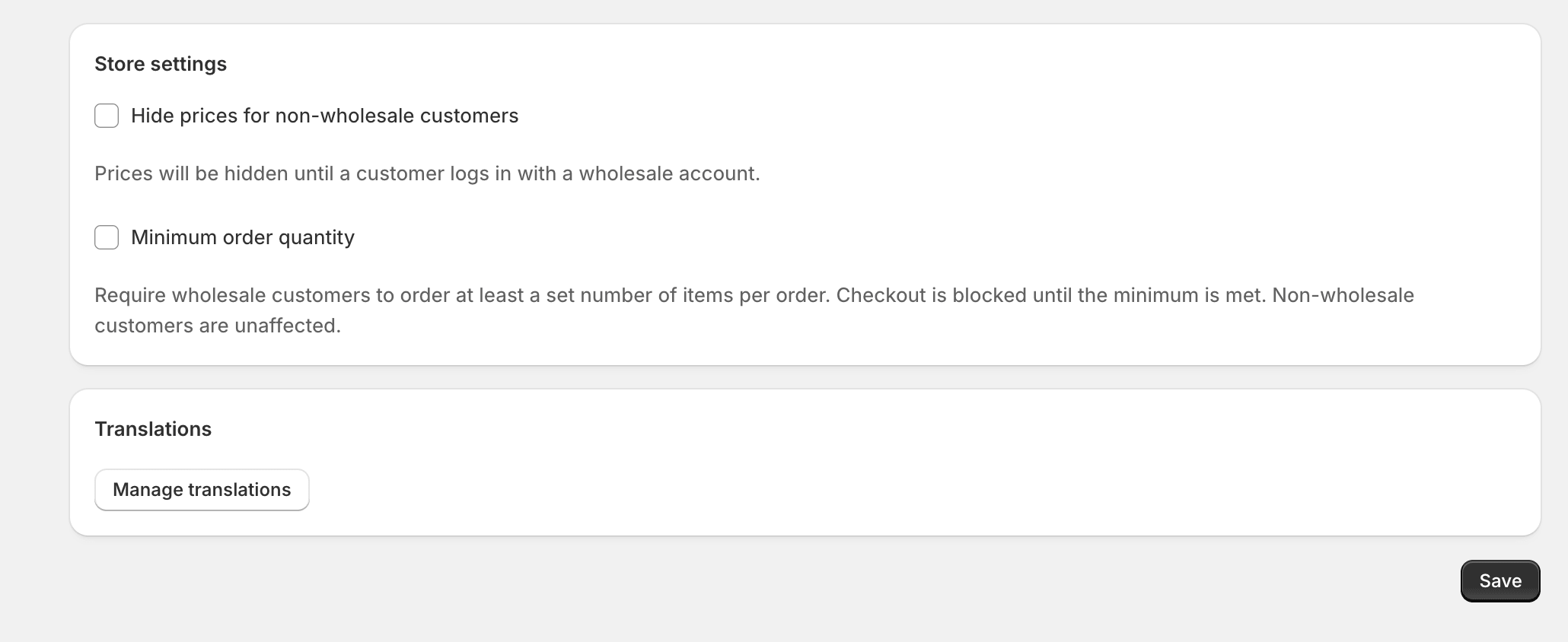
Hide prices for non-wholesale customers
Section titled “Hide prices for non-wholesale customers”When on, retail prices are hidden from anyone who isn’t signed in as a wholesale customer. Visitors see Sign in for pricing in place of the price, and the Add to cart button is replaced with a Sign in link.
This is the right choice when:
- Your wholesale program is closed and you don’t want random visitors to see any prices.
- Pricing is sensitive (MAP-restricted brands, distributor-only catalogs).
- Your retail and wholesale prices are the same and you only want approved buyers to purchase.
Leave it off if you also serve retail buyers from the same store — otherwise you’ll lose retail conversions.
Minimum order quantity
Section titled “Minimum order quantity”When on, every wholesale order must include at least N total items across the cart. Checkout is blocked below this number, with a message telling the buyer how many more they need to add. Non-wholesale customers are not affected.
Pick a single number (e.g. 12) — it applies to every wholesale buyer the same way. There’s no per-group or per-product MOQ in v1; for case-quantity buying you’ll typically use Volume Pricing to nudge buyers up to a sensible total instead.
The page shows a live preview of the rule beneath the field — “Wholesale customers must add at least 12 item(s) to check out.” — so you can sanity check before saving.
Useful when:
- You have a flat fulfilment cost per order and a tiny order isn’t profitable.
- You want to discourage casual orders from large customers and push them toward planned buys.
Skip the MOQ entirely if you’re starting out — it’s the kind of constraint that’s easier to add later than to remove. Customers who hit it for the first time will email support.
The “one more step” banner
Section titled “The “one more step” banner”The first time you turn on either of the settings above, a yellow banner will appear at the top of the page:
One more step to apply your settings to the storefront. Activate the Wholesale Storefront app embed in your live theme.
That’s because the toggles on this page don’t take effect on your storefront until the Wholesale Storefront app embed is active in your theme. The embed is what enforces the rules in the buyer’s browser — without it, the toggles are saved but nothing changes on the live site.
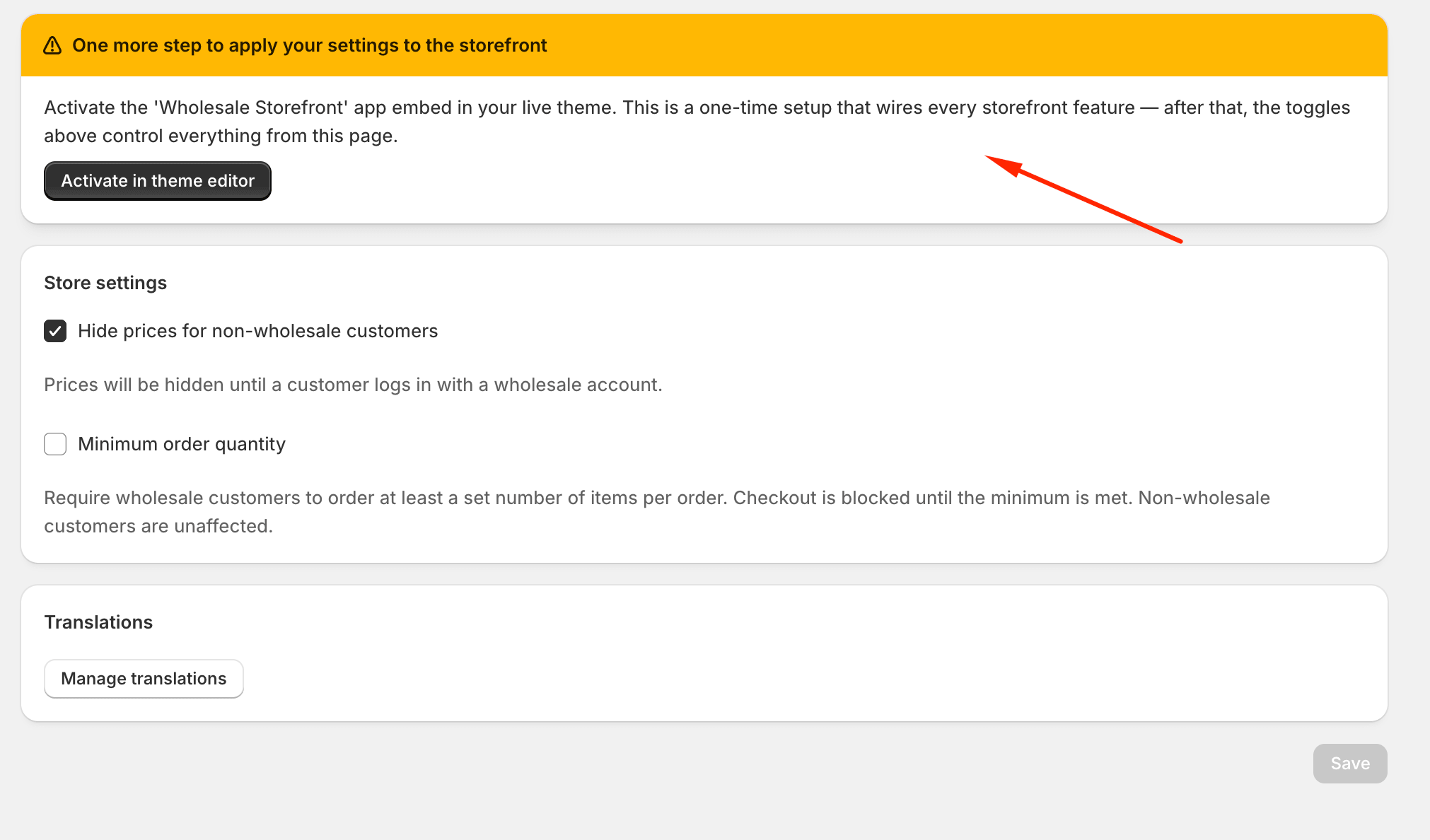
Click Activate in theme editor in the banner. Shopify opens the theme editor with the Wholesale Storefront embed already selected — flip the toggle to on and click Save.
This is a one-time setup. Once the embed is active, the banner stops appearing and every toggle on this page wires up instantly. Switching themes later? Repeat the activation in the new theme.
Saving changes
Section titled “Saving changes”Click Save at the top right of the page (or in the floating save bar that appears when you’ve made changes). You’ll see a Settings saved toast. The new values take effect:
- Hide prices — immediately, on the next page load for all visitors.
- MOQ — immediately, on the next checkout attempt.
To discard your edits without saving, click Discard in the same floating save bar.
What’s next
Section titled “What’s next”You’ve now seen every page. From here:
- Roll out a real wholesale group: Create Your First Group.
- Open up a public application form: Registration Forms.
- Need help? Reach out to support from the app — we’re a small team and we read every message.